Connect Claude or ChatGPT to ERPNext with the built-in MCP server (v16)
Applies to: Frappe v16.53.0 and later, ERPNext v16. Self-hosted bench. Checked 2026-11 on Frappe v16.54.0 and ERPNext v16.53.0. Version 15 does not have this server.
Frappe v16 has an MCP server built in. You do not need an extra app. Your MCP endpoint is https://<your-site>/api/v2/mcp. Claude connects to it and acts as one ERPNext user, with that user's permissions.
The server came in frappe#44431 (develop, merged 2026-10-16). frappe#44449 backported it to v16 on 2026-10-22. The first v16 release with it is v16.53.0. The older frappe/mcp app now says it is deprecated.
Check your version#
Run this in your bench folder:
bench version
You need frappe 16.53.0 or later. If your version is older, update the bench first. On v16.52.0, /api/v2/mcp does not exist.
Step 1: Check that MCP is on#
- Log in to Desk as a System Manager.
- Open System Settings.
- Open the AI Agents tab.
- Make sure Enable MCP is ticked. Save.
New sites have it on. Our site was upgraded from v16.34.0, and the upgrade patch turned it on too.
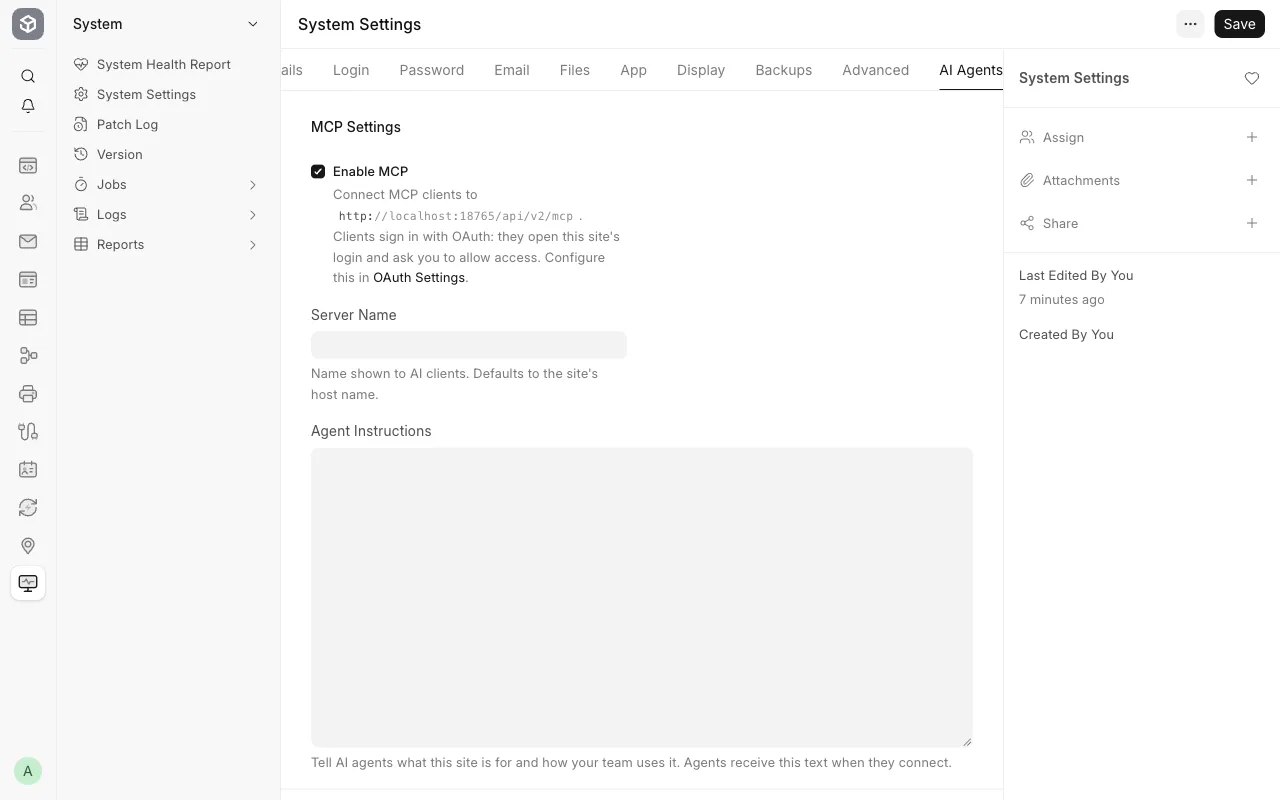
Use Agent Instructions on the same tab to tell the AI what your site is for. This text does not give any permissions.
Step 2: Make a user with only the access the AI needs#
The MCP server acts as the user who signs in. An Administrator login gives the AI full access to delete, cancel and submit. Make a separate user with only the roles it needs.
The user must be a Desk user (System User). A Website User gets 403 with the message MCP is only available to desk users.
We made a read-only user for sales data:
- Open the Role list and click Add Role.
- Set Role Name to
MCP Reader. - Tick Desk Access. Save.
- Open Role Permissions Manager.
- Select Sales Invoice as the Document Type.
- Click Add A New Rule, select the role
MCP Reader, and click Add. - Do the same for Customer.
- Make sure Write, Create, Delete and Submit stay clear.
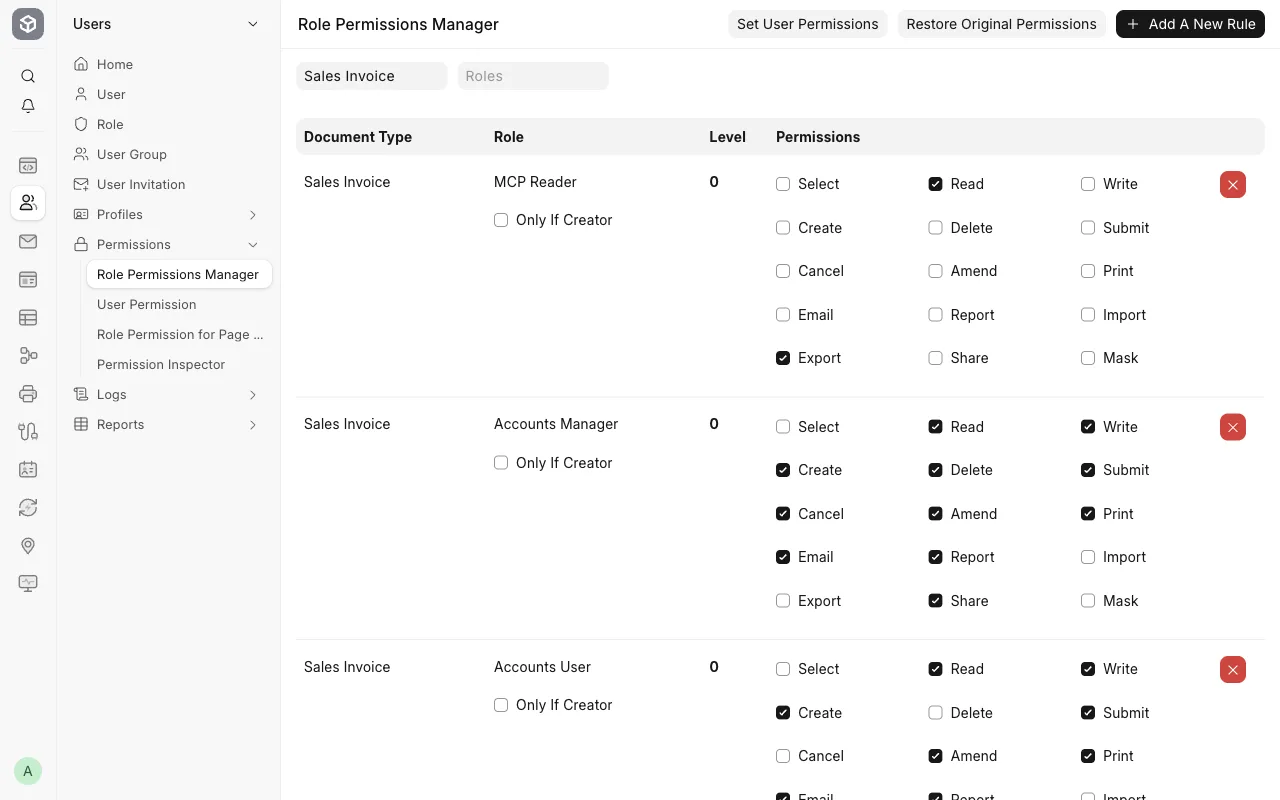
Then make the user:
- Open the User list and click Add User.
- Enter an email, for example
mcp-bot@example.com, and a first name. - Save. Open the Roles & Permissions tab, tick only
MCP Reader, and save again.
Add a role for each DocType that the AI must read. With only MCP Reader, our user got Insufficient Permission for Supplier when it asked for suppliers.
Step 3: Connect Claude Code#
You can sign in with OAuth or with an API key. We tested both with Claude Code 2.1.316.
Option A: OAuth (browser login)#
Frappe v16 publishes OAuth metadata and accepts dynamic client registration. Both were on by default on our site. The settings are in OAuth Settings.
claude mcp add --transport http erpnext https://<your-site>/api/v2/mcp
claude mcp login erpnext
A browser opens on your site's login page. Log in as the MCP user, not as Administrator. Frappe then shows a Confirm Access page: "Claude Code (erpnext) wants to access the following details from your account". Click Allow. Claude Code then printed:
Authenticated with "erpnext". Its tools are now available in Claude Code.
On a server with no browser, add --no-browser. Claude Code then prints the URL, and you paste the redirect URL back.
Option B: API key#
- Open the MCP user's User record as a System Manager.
- Open the Settings tab, then the API Access section.
- Click Generate Keys.
- Copy the API Secret from the dialog. The form shows it only as
***after that.
claude mcp add --transport http erpnext https://<your-site>/api/v2/mcp \
  --header "Authorization: token <api_key>:<api_secret>"
claude mcp list
Replace <api_key> and <api_secret> with the user's keys. claude mcp list should show erpnext: ... (HTTP) - ✔ Connected. Claude Code stores the header in ~/.claude.json, so keep that file private.
Step 4: Ask for real data#
We asked Claude Code: "List my Sales Invoices with customer, grand total and status. Then read the Customer 'Blue Harbour Foods'. Then try to create a Customer named 'Test From Claude'."
Claude made three tool calls:
{"tool": "list_documents", "arguments": {"doctype": "Sales Invoice", "fields": ["name", "customer", "grand_total", "status"], "limit": 100}}
{"tool": "get_document", "arguments": {"doctype": "Customer", "name": "Blue Harbour Foods"}}
{"tool": "create_document", "arguments": {"doctype": "Customer", "data": {"customer_name": "Test From Claude"}}}
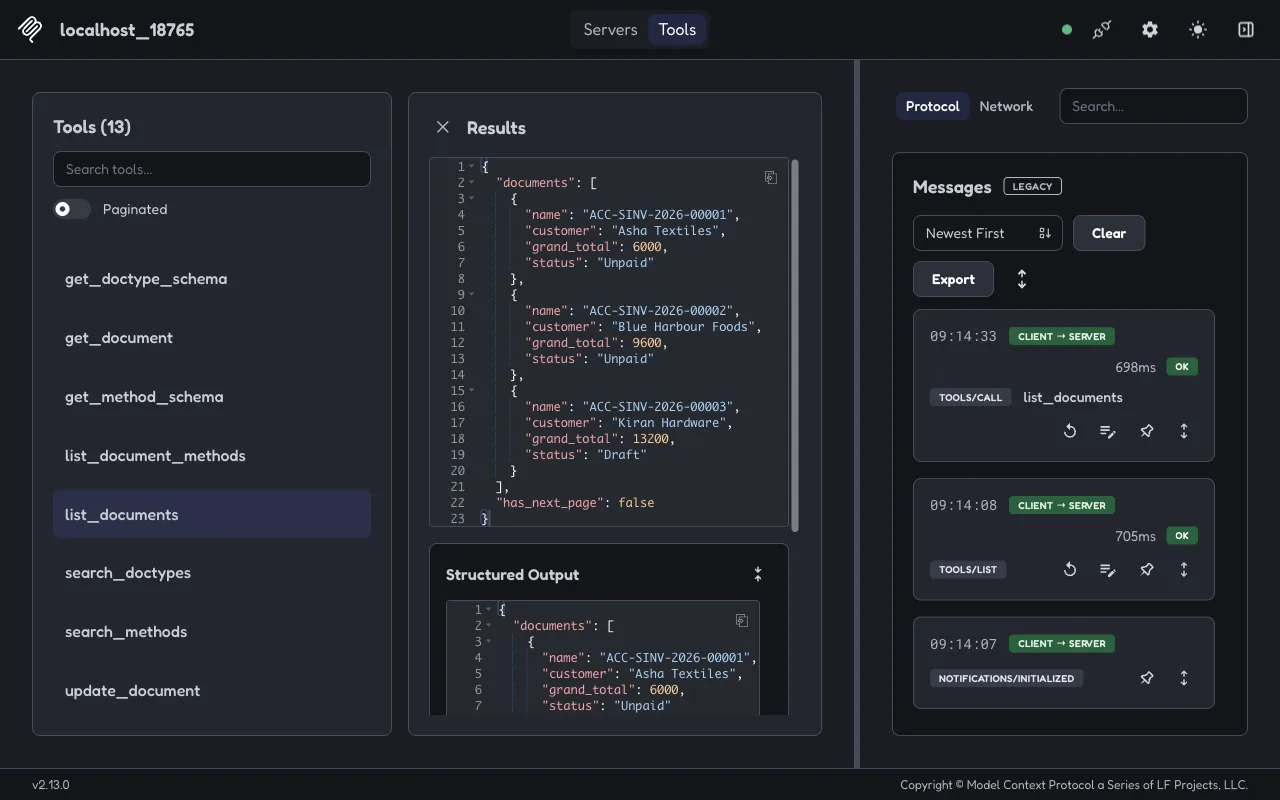
The first two returned our 3 invoices and the customer record. The third returned PermissionError, because MCP Reader has no Create permission. No customer was made. This is the result you want from a read-only user.
The server has 13 tools: search_doctypes, get_doctype_schema, search_methods, get_method_schema, list_document_methods, list_documents, get_document, count_documents, create_document, update_document, delete_document, call_method and call_document_method. Each one checks the user's permissions like the REST API does.
Test without an AI client#
The MCP Inspector calls the tools directly. It does not need an AI account.
npx -y @modelcontextprotocol/inspector@2.13.0 --cli https://<your-site>/api/v2/mcp \
  --transport http --header "Authorization: token <api_key>:<api_secret>" \
  --method tools/call --tool-name list_documents --tool-arg "doctype=Sales Invoice"
The output starts with "content" and has a "documents" list. Run the same command without --cli and the options after it to get the web UI.
Claude Desktop and ChatGPT#
We did not test these. The official MCP guide gives the Claude Desktop steps. Open Settings > Connectors > Add custom connector and enter the endpoint URL. Hosted clients such as Claude Desktop connectors and ChatGPT connect from the internet. So your site needs a public HTTPS URL. A localhost or VPN-only site does not work for them.
If it fails#
| Response | Cause |
|---|---|
404 |
Frappe is older than v16.53.0, or Enable MCP is clear. |
405 |
You opened the URL in a browser. The endpoint accepts only POST. |
401 Authentication required |
The token header is missing or wrong, or the OAuth login did not finish. |
403 MCP is only available to desk users |
The user has no role with Desk Access. |
Insufficient Permission for <DocType> |
The user has no Read permission on that DocType. |
For other API errors, see Function ... is not whitelisted. The MCP server and its settings are new and marked beta, so names can change in later v16 releases.
Sources#
- frappe#44431: add a built-in MCP server
- frappe#44449: backport the MCP server to v16
- MCP guide (docs.frappe.io, updated 2026-10-27)
- Official MCP Server from Frappe? (discuss.frappe.io)