ERPNext Notification not sending email: a checklist
Applies to: Frappe v16.34.0, ERPNext v16.35.0. Self-hosted bench on Ubuntu 22.04. Checked 2026-11. Not checked on v15.
A Notification email goes through four stages. Find the first stage that fails:
- The Notification fires (Enabled, event, condition).
- It finds at least one valid recipient.
- Frappe finds an outgoing Email Account and adds the email to the Email Queue.
- A background job sends the queued email.
Our test: a Notification on Purchase Order, "Send Alert On" = Submit, condition doc.grand_total > 50000, recipients by role "Purchase Manager". We used Mailpit as a local SMTP server, so no real email left the bench.
Symptom#
You submit or save a document. The Notification does not send an email, and Desk shows no error.
Cause#
Each stage fails without a message in the form. Only stage 3 writes an Error Log. The checklist below shows where each stage leaves a trace.
Fix: the checklist#
1. Is there a default outgoing Email Account?#
Open Error Log. Without an outgoing account, we got a row "Failed to send Notification":

The traceback ends with:
frappe.exceptions.OutgoingEmailError: Please setup default outgoing Email Account from Tools > Email Account
Frappe still added a Communication to the document. The Email Queue stayed empty.
Open Email Account and set Enable Outgoing and Default Outgoing on one account.
2. Does the Notification fire?#
Check that Enabled is set. Check Document Type and Send Alert On. "Submit" fires only on submit, not on save.
Then test the condition. Open the Notification and click Preview. Pick a document in Document. The dialog shows Meets Condition?:
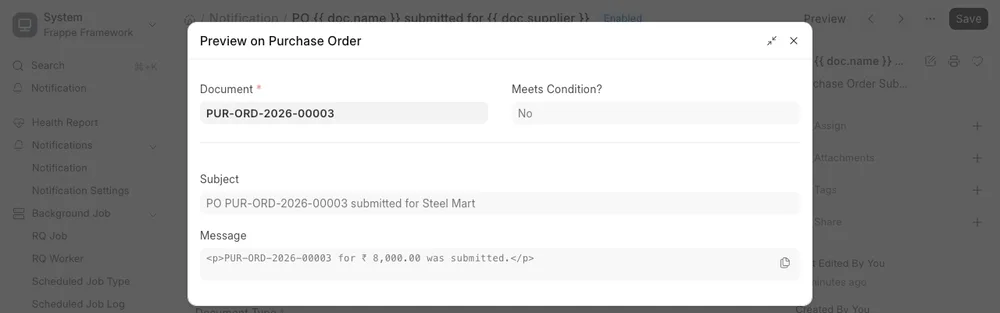
Our purchase order of 8,000 got "No", so no email was made. Frappe made no Communication, no Email Queue row and no Error Log.
The code also skips Notifications during a patch. It skips them during a Data Import with Don't Send Emails set, which is the default. We did not test this.
3. Does it find a recipient?#
Each row in Recipients must give at least one valid address.
- Receiver By Role: the role must have users with an email address.
- Receiver By Document Field: the field must hold a valid email on that document.
We set the recipient to the field contact_email. Our purchase order had no contact, so the field was empty. Frappe skipped the email and logged nothing.
4. Is the email stuck in the Email Queue?#
Open Email Queue. A row with the status "Not Sent" means the email was made, but no job sent it:

The job frappe.email.queue.flush sends the queue every 4 minutes. It needs an active scheduler and a running worker. We stopped both, and the row stayed "Not Sent" past the next run. After we started them, it changed to "Sent" at the next run.
Check the scheduler:
bench --site <site-name> scheduler status
bench doctor
You need Scheduler is enabled and Workers online: of 1 or more. If the scheduler stays disabled, read Scheduler is inactive.
Two more settings hold the queue:
mute_emailsin the site config. We set it to 1, and the row stayed "Not Sent". Remove it withbench --site <site-name> set-config mute_emails 0.- Suspend Sending on the Email Queue list. It changes to Resume Sending when it is on. We tested the same setting from the console.
To send the queue now, without waiting for the job:
bench --site <site-name> execute frappe.email.queue.flush
5. Did the SMTP server refuse it?#
A row with the status "Error" means the SMTP server refused the email. Open the row and read Error. Then check the server, port and password on the Email Account. We did not test a refused email for this guide.
Test it without a real email service#
Mailpit is a local SMTP server. It shows each email in a web inbox. We ran it on the bench server:
cd /tmp
curl -sSL -o mailpit.tgz https://github.com/axllent/mailpit/releases/download/v1.27.10/mailpit-linux-amd64.tar.gz
tar xzf mailpit.tgz mailpit
./mailpit --smtp 127.0.0.1:1025 --listen 127.0.0.1:8025
Then make an Email Account with these values:
- Email Address: any address, for example
erp@example.test - Enable Outgoing and Default Outgoing: set
- Outgoing Server:
127.0.0.1, Port:1025 - Use TLS: not set
- Disable SMTP server authentication: set
Open http://127.0.0.1:8025 in a browser on the server, or through an SSH tunnel. Do not use this account on a live site. Every email then goes to Mailpit and not to your customers.
Check that it worked#
Submit a document that meets the condition. After the next queue run, the Email Queue row shows "Sent". Mailpit shows one email for each recipient:

If it still fails#
- The Send System Notification option and the "System Notification" channel use the bell icon in Desk, not email.
- Look in
~/frappe-bench/logs/worker.error.logfor the newest error. Post it on discuss.frappe.io with your versions (bench version).
Sources#
- Email Notification for New Purchase Order not working (discuss.frappe.io)
- Notification in frappe/email/doctype/notification/notification.py, version-16
- Email Queue in frappe/email/doctype/emailqueue/emailqueue.py, version-16
- Mailpit (GitHub)